
If the 1xBet app does not appear when you search the App Store on your iPhone, the store is showing you the catalogue for your current Apple ID country. Other regional catalogues stay hidden until you change that country setting. Apple’s own path runs from the App Store account screen to Country/Region, then to Colombia, the Apple Media Services terms, a billing address, and a payment method set to None. Only after that does the 1xBet listing become reachable. If you plan to place bets or check live odds once the app is installed, confirm the account you will fund before you deposit.
Why the 1xBet listing disappears on some iPhones
App Store availability is regional. A 1xBet listing can exist for Nigeria, Kenya, Ghana, Zambia, or Ireland and still be absent from the store your Apple ID is tied to. That is not a fault on your phone, and reinstalling the App Store will not change it. The catalogue you see is decided by the country stored on your Apple ID, so the fix belongs in your account settings rather than in your search terms.
Apple documents the general limits of store downloads, and the same rules apply here: your account country controls which listings you can reach. If you want the background on how Apple handles store availability, review the reference material on App Store downloads before you start changing anything. The interface labels you see may differ slightly by iOS version and region.
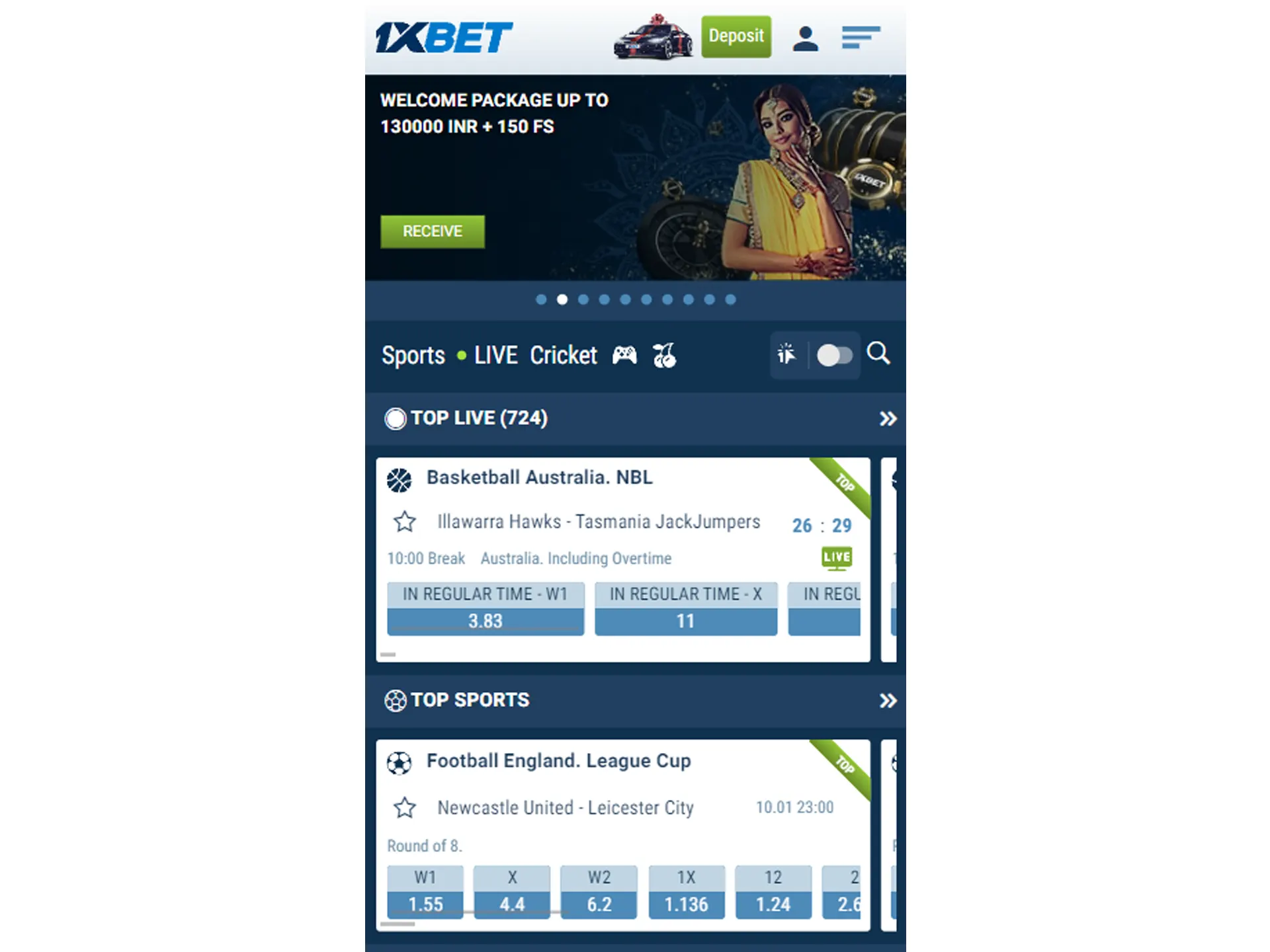
Before you touch the country setting
Changing country is not a casual toggle. Apple expects your billing details to match the new region, and it will ask you to accept the Apple Media Services terms again. Have a real street name, city, postcode, and phone number ready for the address step, because the form will not accept empty fields.
- Check that your Apple ID balance is low or zero, since a leftover balance can block the change.
- Confirm you can sign in to your Apple ID, because the account screen requires your password.
- Decide whether you are changing the region on your existing Apple ID or creating a fresh one.
- Keep your iPhone connected to the internet for the whole sequence.
If you hold active subscriptions tied to your current country, expect the change to be refused until those are resolved. Apple will show a message rather than silently failing.
Open the App Store and reach your account
Start from the home screen and work through the App Store in the order Apple presents it. Each tap moves you one screen forward, and going back mid-sequence can drop you at the start.
- Tap the App Store icon on your iPhone.
- Tap your account picture in the top corner of the screen.
- Tap your name at the top of the account page.
- Look for Country/Region in the list of account options.
- Tap Country/Region.
- Tap Change Country or Region.
The Country/Region row only appears when you are signed in. If it is greyed out, sign out and sign back in, then return to the same screen and repeat the taps in order.
Select Colombia and accept the terms
Apple will present a country list. Choose Colombia, then continue. The next screen is the Apple Media Services Terms and Conditions, and you must accept it to move forward. Declining returns you to the previous screen with the old country still in place.
- Select Colombia as your country.
- Tap Agree or Accept on the terms screen.
- Wait for the billing address form to load.
The terms screen is not a formality you can skip. Apple records the acceptance against your account, and the address form only opens after that acceptance is registered. If the form does not load, go back one screen and accept the terms again.
Fill in the billing address fields
The address form asks for a street, city, postcode, and phone number. The official example uses a Colombian street entry, the city Momil, postcode 232001, and phone number 3042979282. Enter your own details in the same field order rather than copying the sample blindly, because the form validates the postcode and phone format against the selected country.
| Field | What it expects |
|---|---|
| Street | A street line, shown as Carrera in the example |
| City | A Colombian city, shown as Momil |
| Postcode | A numeric code, shown as 232001 |
| Phone number | A local number, shown as 3042979282 |
Leave nothing blank. A missing postcode or an incorrectly shaped phone number will stop you on the same screen with a field-level warning, and the form will keep the data you already typed.
Set the payment method to None
The payment section sits below the address fields on the same screen. Open the payment method list and choose None, then tap Next. Selecting None keeps you from entering card details during a region change, which is what most readers want at this stage of the process.
- Open the payment methods list.
- Select None.
- Tap Next to submit the form.
If None is not offered, your account still carries a payment obligation in the old region. Clear that first, then repeat the sequence from the Country/Region screen, because the form will not submit while a balance remains unresolved.
Find and install the 1xBet app
Once the form is accepted, your App Store refreshes against the Colombia catalogue. Search for the app again, and the listing should now be visible if it exists for that region. Tap Get, then confirm with Face ID, Touch ID, or your Apple ID password. The download begins immediately after confirmation.
- Open the App Store search tab.
- Type the app name and open the listing.
- Tap Get next to the app icon.
- Confirm with Face ID, Touch ID, or your password.
- Wait for the circle to complete, then tap Open.
Before you rely on the install for anything financial, confirm the account you will actually use. If you intend to place a wager or track live betting odds after topping up through 1xbet app download apk, verify that the signed-in profile is the one you intend to fund. A mismatch between the installed 1xBet app and your betting account is easier to fix now than after a deposit.

When an error message appears
Some accounts cannot complete a country change at all. Apple rejects the switch when the old region still has unresolved billing, a store credit balance, or restrictions attached to the account. The official 1xBet page gives a direct instruction for this case: create a new Apple ID at appleid.apple.com with Colombia set as the country, then sign in with it on the App Store.
| Route | When it works | Main catch |
|---|---|---|
| Change the existing Apple ID country | Account has no pending balance or billing issues | Blocked by store credit or active subscriptions |
| Create a new Apple ID with Colombia selected | Old account refuses the switch | Purchases and subscriptions stay on the old ID |
A new Apple ID means a separate library. Apps bought on the old ID will not follow you across, and you may need to sign out of the store before the new one takes effect. Keep the old credentials somewhere safe in case you need them later.
Points where the sequence commonly breaks
Errors cluster at predictable points rather than appearing at random. Anticipating them saves a second pass through the whole flow.
- The Country/Region option is missing because you are not signed in.
- The terms screen reappears because the previous attempt was cancelled.
- The address form rejects the postcode or phone number format.
- The payment list does not show None because of an outstanding balance.
- The 1xBet listing stays hidden because the store has cached the old catalogue.
- The app installs but will not open because a regional mismatch persists.
For the cached-catalogue case, close the App Store from the app switcher and reopen it. For the persistent mismatch, sign out of the App Store completely, restart the iPhone, and sign back in with the correct account.

Confirm the account before the download, not after. Reversing a region change once the 1xBet app is installed adds steps you do not need.
FAQ
Can I keep using my old Apple ID alongside the new one?
Yes, but the two libraries stay separate. Signing in with the Colombia ID gives you the store catalogue for that country, while apps and purchases tied to the previous ID remain there. Switching back and forth is possible, though each switch asks for the password again.
What happens to my existing subscriptions after the country change?
Subscriptions tied to the old country usually need to be cancelled before the switch completes. If Apple refuses the change, check the subscriptions list first, cancel anything active, then repeat the Country/Region sequence from the beginning.
Does the 1xBet app work if I travel to a different country later?
The installed app keeps running, but store access follows the Apple ID country rather than your physical location. A later trip does not remove the app, and it does not restore your previous catalogue either. Only another country change alters the store view.
Why does the payment list still refuse None?
None appears only when the account has no unpaid balance or pending charge. Clear the balance or contact Apple support about the restriction, then return to the billing screen and select None again before tapping Next.
How do I undo the change if I picked the wrong country?
Return to the same Country/Region screen and run the sequence again with your original country selected. The address form will ask for matching details for that country, and the payment method may need to be set to a valid option rather than None.